Drag and drop a PDF file, then insert pages.
Select a PDF, then insert pages.
Select a PDF, then insert pages.
Follow these easy steps to insert one or more files into your PDF:
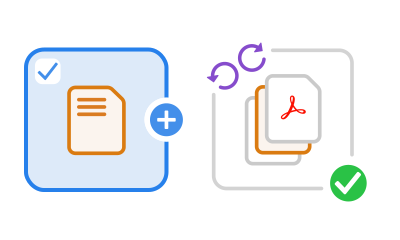

Complete your work faster with Adobe Acrobat online services by adding one or more pages to a PDF file. You can add a single PDF file or multiple files wherever you like.

You can add multiple pages to your PDF as long as the final count reaches 1,500 pages or less and is not more than 100MB in size. However, each added file can have up to 500 pages.

Once done adding pages to the PDF, use other Acrobat online tools to set up your PDF document exactly how you want. Move pages around or delete and rotate them.

Adobe prioritises privacy and security. You can Trust Acrobat to build security measures into every PDF document. We do not store files on our servers unless you sign in to save them.

When you save files to your Acrobat account, our Adobe cloud storage allows you to access them from anywhere on any device. You can also share links to them and collect everyone’s feedback in one PDF to work collaboratively.

When we talk exceptional, Adobe tools emerge first. As the inventors of the PDF file format, our online tools offer high-quality PDFs. Quickly insert pages into a PDF and keep your work moving from anywhere.
Yes, you can add one or more pages to a PDF file. Upload a PDF using our insert pages tool and sign in to Acrobat online. Use your cursor to select the desired insertion point and select the file or files you want to add from the dialogue box. Once the files are added, you can drag and drop the PDF pages to reorder them. You can also rotate a selected page using the rotate clockwise or rotate anticlockwise icon. To delete pages, whether a single page or a page range, select the pages and click the dustbin icon. When you save the file, your new document will include all your changes.
For access to more PDF tools, try Adobe Acrobat Pro for free for seven days on the Windows or Mac operating system. The Acrobat Pro trial lets you extract pages, add blank pages and insert other types of files, including Microsoft Word documents, PowerPoint presentations and Excel spreadsheets. You can use PDF editor tools to edit PDF text and images, annotate documents, combine multiple PDF files, add bookmarks or watermarks, insert page numbers, copy content from files and more. You can also resize PDF files, convert files to PDF and convert PDFs to Microsoft files or image formats like PNGs. Easy tutorials get you up and running fast..