
Follow these image size how-tos.
Learn to adjust image size and resolution by completing some step-by-step tutorials.


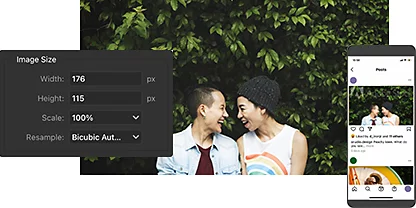
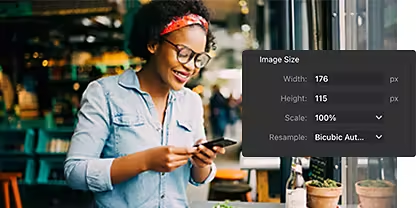
Adjust width and height or change an image’s resolution, measured by pixels per inch (PPI), by clicking Image › Image Size. This will permanently change the size of the image file.
Change your unit of measurement by clicking the drop-down menu next to Width or Height. Choose from pixels, inches, centimeters, percent of the original size, and more.
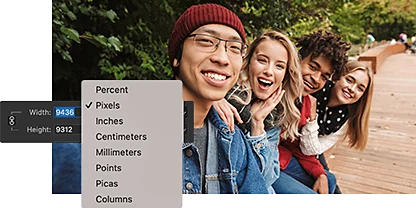
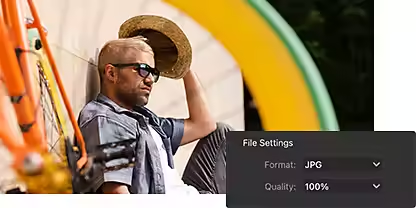
To create a new, smaller file and keep the original size file intact — in other words how you resize pictures in Photoshop without losing quality — simply click File › Export As. The Export function also lets you to adjust pixels, scale down by percentage, or export as a JPEG with decreased quality.
Zoom in or out of your image in either the Export As or Image Size dialog boxes to ensure your resized image has the right amount of detail for your use case.
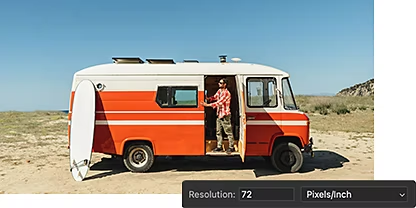
Different use cases require different image resolutions. For most web uses, 72 PPI is sufficient. However, a higher resolution around 300 PPI or higher is better for creating a high-quality print.
Choose an interpolation method to specify how data is resampled in your image. It’s often best to go with automatic and let Photoshop choose for you, but Bicubic Sharper is a great option for reductions and Bicubic Smoother is good for enlargements.
follow these steps to change the size of your image using the Image Size function. Go to File › Save As to create a new version of your photo before making permanent changes. This way, you keep your original image intact.
Discover more about changing the size of an image with easy-to-follow tutorials. Then explore easy ways to improve resolution in Adobe Lightroom.
Learn to adjust image size and resolution by completing some step-by-step tutorials.

Increase resolution and pixels in just a click with Super Resolution in Lightroom.
The Photoshop on the Web Beta Blur allows you to easily scale your photos while preserving the existing crop ratio. Note that you must have a valid Adobe Creative Cloud subscription with Photoshop to use this service. To resize your images, take the following steps:
1. Go to Image > Image Size.
2. Keep the link icon highlighted to preserve proportions.
To resize an image in Photoshop by dragging, follow these steps:
1. Open the image in Photoshop.
2. Select the Transform tool by pressing Ctrl + T (Cmd + T for Mac). You can also go to Edit > Free Transform.
3. Drag one of the corners of the transform box while holding down the Shift key. This maintains the image’s aspect ratio.
4. Release the mouse button to apply the transformation.
Alternatively, you can also use the "Image Size" dialog box to resize an image. To do this, go to Image > Image Size and enter the desired size in the "Width" and "Height" fields. Make sure that the "Constrain Proportions" box is checked to maintain the aspect ratio of the image.
To scale an image with layer styles in Photoshop, you’ll need to select the proper layer in the Layers panel. Choose Layer > Layer Style > Scale Effects. You can also right-click the FX icon and choose Scale Effects. Enter the appropriate percentage or drag the slider. Select Preview to preview those changes in the image.
In some cases, it might be worth it to convert the layers to a Smart Object. You can then use the Transform tool by pressing Ctrl+T (Cmd+T on Mac) or selecting the Edit > Free Transform tool. Drag one of the corners of the transform box while holding down the Shift key. This maintains the aspect ratio.
Annual, billed monthly
US$22.99/mo
Get Photoshop on desktop and iPad as part of Creative Cloud.
Annual, billed monthly
US$69.99/mo
Get 20+ Creative Cloud apps, including Photoshop on desktop and iPad.
Annual, billed monthly
US$19.99/mo
Save over
Annual, billed monthly
US$99.99/moper license
Industry-leading creative apps with simple license management.


